CSS Selectors 101: Targeting Elements with Precision
Introduction: Why CSS Selectors Are Needed
Imagine you're in a crowded room and you want to:
Talk to all the teachers → "All teachers, please listen"
Talk to just one specific person → "Sarah Johnson, come here"
Talk to people wearing blue shirts → "Everyone in blue, step forward"
CSS selectors work the same way—they're how we choose which HTML elements to style.
Analogy: CSS selectors are like addressing envelopes:
"To: All Residents" = Element selector
"To: The Smith Family" = Class selector
"To: John Smith, Apartment 3B" = ID selector
Without selectors, CSS would have to style everything the same way. With selectors, we can be precise and efficient.
Element Selector: The Broad Brush
What it is:
Selects ALL elements of a specific type.
Syntax:
elementname {
property: value;
}
Examples:
<p>This is a paragraph.</p>
<p>This is another paragraph.</p>
<div>This is a div.</div>
<p>Yet another paragraph.</p>
css:-
p {
color: blue;
font-size: 16px;
}
Result: All three elements with class="highlight" get the yellow background, regardless of their element type.
Key Points:
Starts with a dot (
.)Can be used on multiple elements
Elements can have multiple classes (
class="highlight urgent")
Real-World Analogy:
"Everyone wearing a red shirt, come here"
- Affects a specific group, regardless of who they are
When to use it:
Styling reusable components
Grouping elements with similar appearance
Most common selector in practice
ID Selector: The Unique Identifier
What it is:
Selects ONE specific element with a unique ID. IDs should be unique on a page.
Syntax:
#idname {
property: value;
}
<header id="main-header">Website Header</header>
<section id="hero">Hero Section</section>
<footer id="page-footer">Copyright Info</footer>
css:-
#main-header {
background-color: navy;
color: white;
height: 80px;
}
#hero {
background-image: url('hero.jpg'); height: 400px;
}
Result: Each ID gets its own unique styling. The header is navy, the hero has a background image.
Key Points:
Starts with a hash (
#)Should be unique on a page (only one element with that ID)
More specific than classes
Real-World Analogy:
"Sarah Johnson in apartment 3B, you have a package"
- Targets one specific person/location
When to use it:
Unique page sections (header, footer, main content)
Anchor links (
<a href="#section">)JavaScript targeting (common use case)
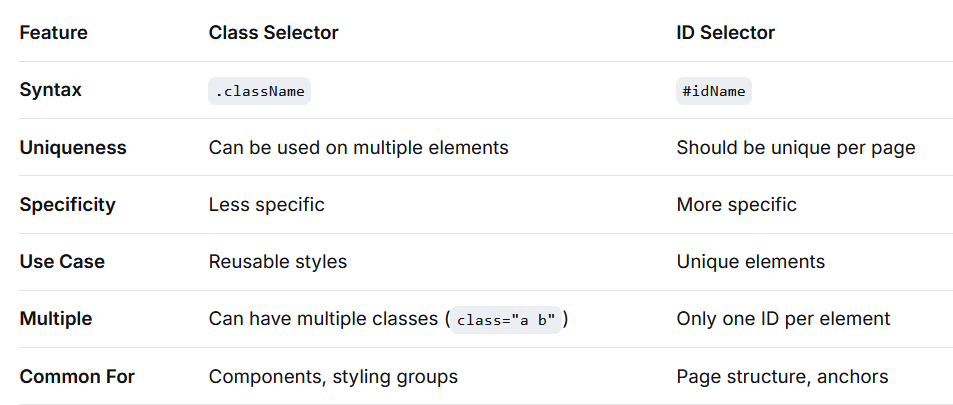
Comparing Class vs ID Selectors
Group Selectors: Efficiency at Scale
What it is:
Applies the same styles to multiple different selectors at once.
Syntax:
selector1, selector2, selector3 {
property: value;
}
Css:-
h1 {color: navy; margin-bottom: 20px;}
h2 { color: navy; margin-bottom: 20px;}
h3 { color: navy; margin-bottom: 20px;}
/* Do this: */
h1, h2, h3 { color: navy; margin-bottom: 20px;}
h1 { font-size: 32px;}
h2 { font-size: 24px;}
Result: All headings share navy color and bottom margin, but have different font sizes.
Real-World Analogy:
"Teachers AND students, the cafeteria is now open"
- Addresses multiple groups with one statement
When to use it:
Applying common styles to different elements
Reducing code duplication
Resetting browser defaults
Descendant Selectors: Targeting Nested Elements
What it is:
Selects elements that are descendants (children, grandchildren, etc.) of another element.
Syntax:
ancestor descendant { property: value; }
Example:
<nav class="main-nav">
<ul>
<li><a href="#">Home</a></li>
<li><a href="#">About</a></li>
</ul>
</nav>
<a href="#">Outside link</a>
CSS:-
.main-nav a {
color: white;
background-color: navy;
padding: 10px;
}
Real-World Analogy:
"All books in the science section should be reshelved"
- Only affects books in that specific area, not all books everywhere
When to use it:
Scoping styles to specific sections
Avoiding style conflicts
Creating component-specific styles
The Solution: Specificity
CSS has a priority system called specificity. More specific selectors win.
1. ID selectors (#id) ← Most specific
2. Class selectors (.class)
3. Element selectors (p, div)
4. Inherited styles ← Least specific